

How to Deposit at Zoome Casino
At Zoome Casino, we offer a wide range of trusted, fast, and easy deposit methods to match your preferences.
- Bank Cards: Visa, MasterCard
- Online Banking: Interac
- E-Wallets: MiFinity
- Vouchers: Flexepin, Neosurf
- Cryptocurrencies: BTC, BCH, ETH, LTC, DOG, USDT
Card Methods – Visa & MasterCard
Pick the option that matches your card brand—Visa or MasterCard. If you're using a Visa card, we recommend completing verification to ensure a smoother transaction.
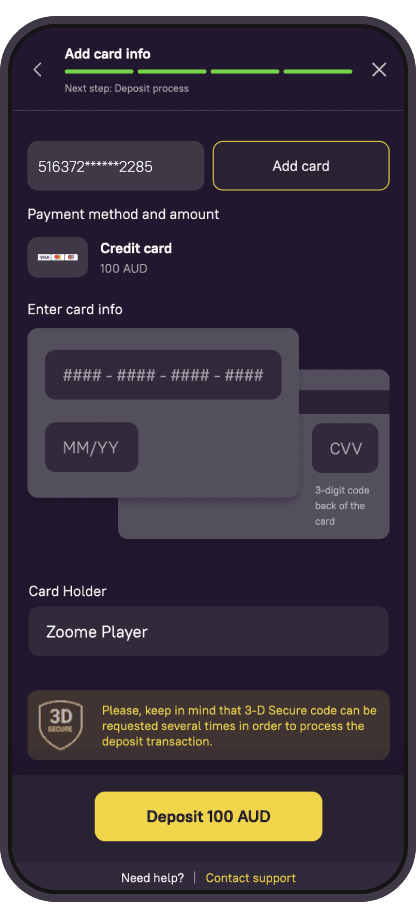
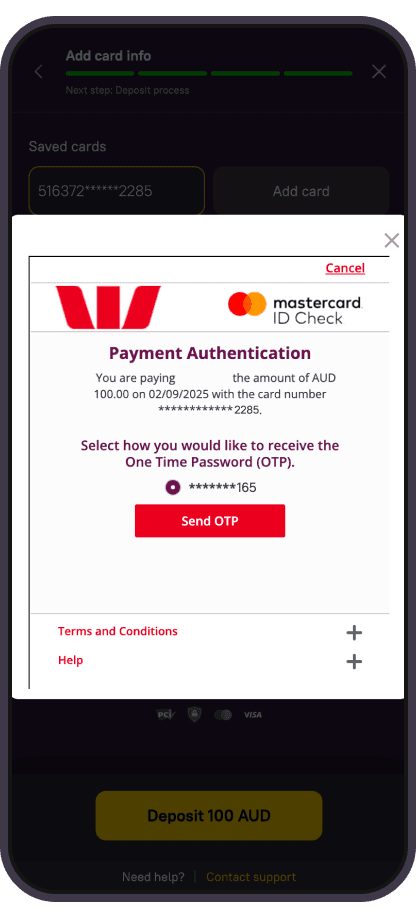
Once you choose your method and amount, you’ll be asked to enter your card details: number, name, expiry date, and CVV. The form may show a different currency, but don’t worry—the full amount you selected will still reach your account. Zoome doesn’t charge any deposit fees, but your bank might for currency conversion or other reasons.
⚠️ Please note: Only cards with 3DSv2 support can be used. If your card doesn’t support 3DS, try another method or a card made for global online payments.
Got an error? Here's what to do:
- Transaction processed but error shown? Contact our support team with a screenshot.
- No 3DS confirmation? Double-check your card info and see if your bank has blocked the transaction.
- Deposit succeeded but error appears later? Check your bank’s online transaction or card limits.
- Error 409 at checkout? Clear your browser cache, ensure Zoome isn’t blocked, and try disabling or changing your VPN.
Screenshots always help our team assist you faster!
Online Banking
Interac
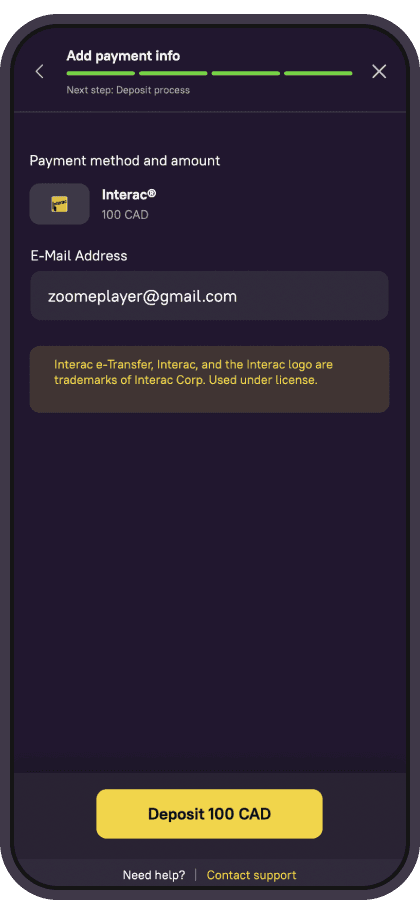
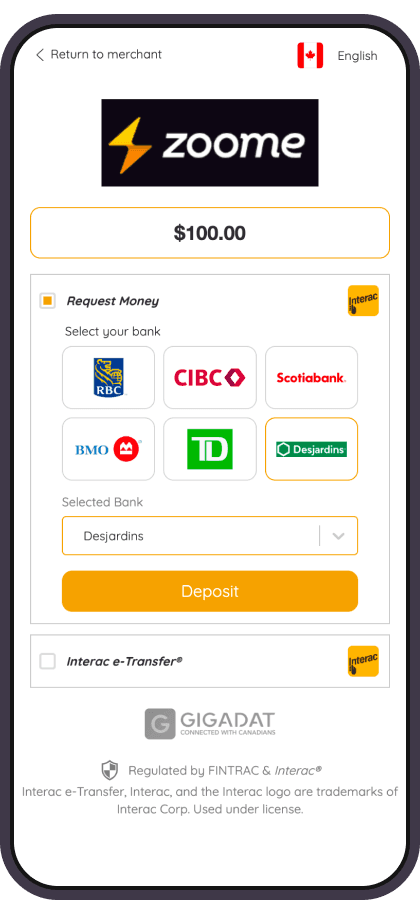
Select Interac in the Cashbox, enter your amount, then click "Continue payment" to be redirected to the Interac site. You'll see a deposit form via Interac e-Transfer.
Under "Other Interac Payment Options," choose your bank and check available methods: Interac Online, Request Money, or e-Transfer.
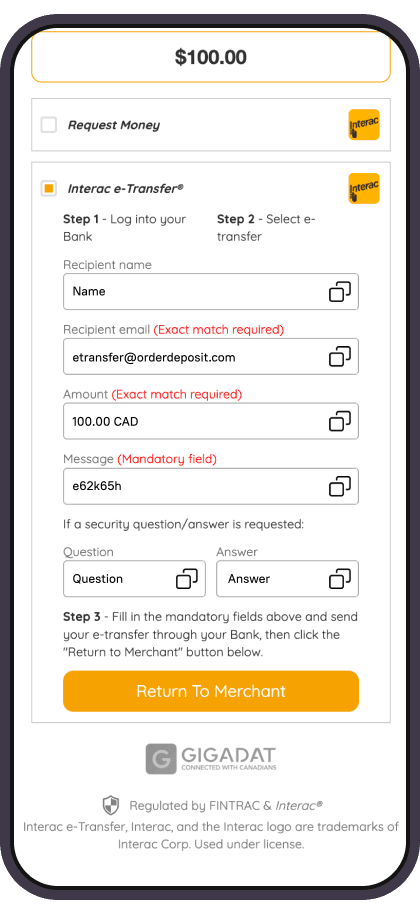
How to use Interac e-Transfer:
- Log in to your online banking and choose Send money via Interac e-Transfer.
- Select the account and enter the exact amount shown in the Cashbox.
- If it's your first time, create a new Recipient using the name and email shown on our site.
- Fill in the Message field exactly as displayed—this identifies your payment.
- Confirm and send!
✅ Double-check:
- Your selected bank matches ours
- The amount is correct
- The message field is filled without extra characters
- The answer to your security question is accurate
A confirmation email with a referral number will also be sent—check all folders.
Tip: Choose E-Transfer for quicker processing. Request for Money transactions might take up to 30 minutes.
Wallets
MiFinity
Choose MiFinity in the Cashbox. If you already have a wallet linked to your account email, log in to complete the payment.
New to MiFinity? You’ll be prompted to create a wallet using your profile info. Just agree to the terms, adjust the details if needed, and click "Create account". Then follow the steps to activate your wallet via email or SMS, set a password, and proceed to payment.
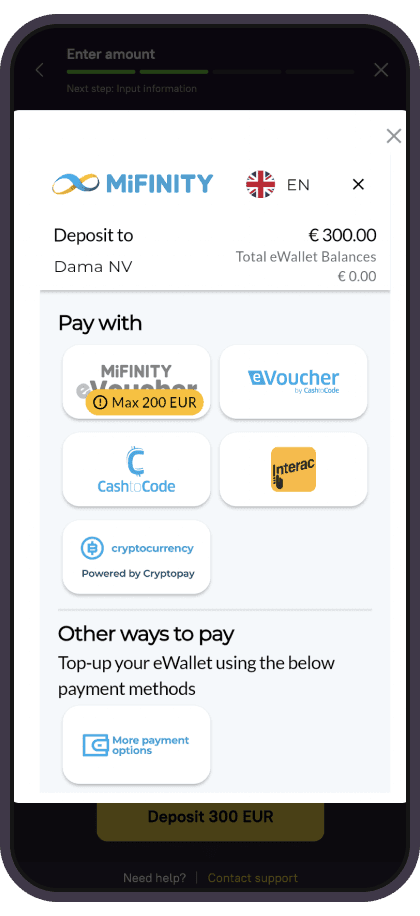
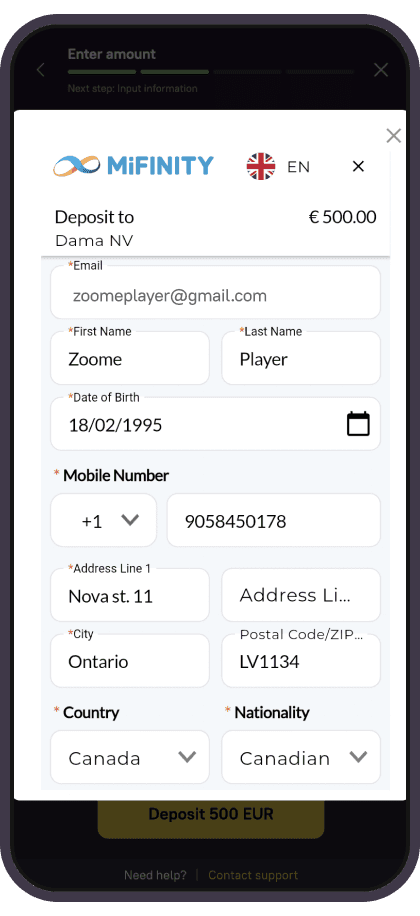
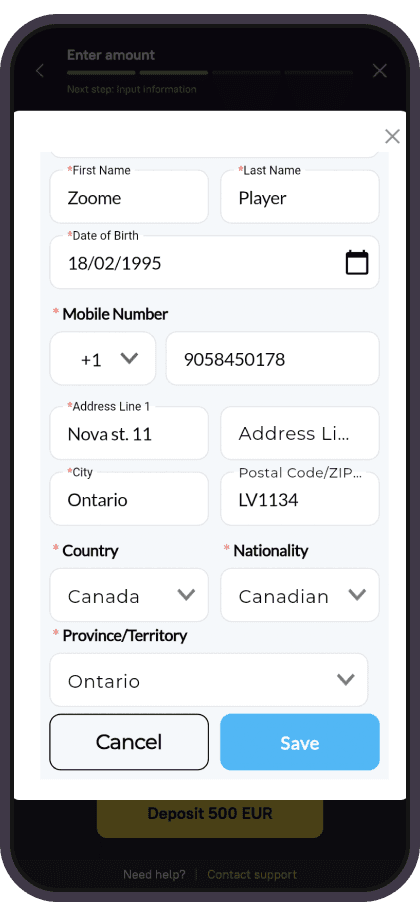
Trouble signing up or paying? Let MiFinity support know where exactly you got stuck—screenshots are helpful!
Vouchers

Neosurf
On the Neosurf site, either enter your active, unused voucher code or buy one by following the link: https://www.neosurf.com/how-to-buy-neosurf/buy-neosurf-online/
If you're stuck, contact Neosurf support directly.
Crypto Payments
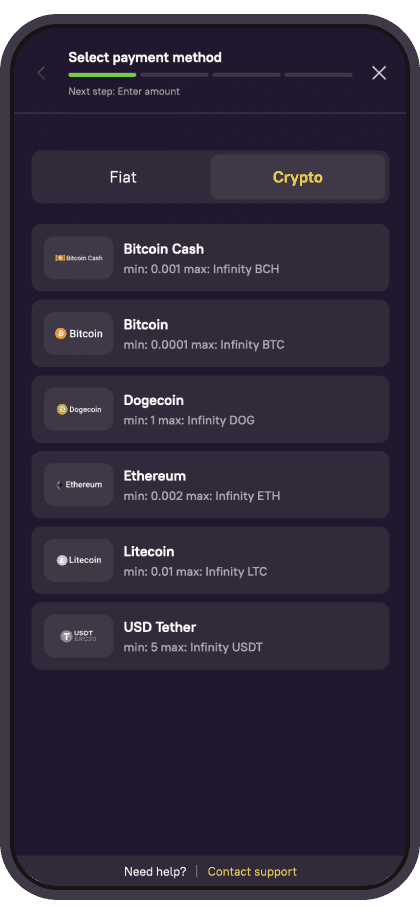
We support a wide variety of crypto options: BTC, BCH, ETH, LTC, DOG, USDT.
Pick your preferred cryptocurrency, copy the wallet address (or scan the QR code), and send your funds. You’ll also see the current exchange rate on the page.
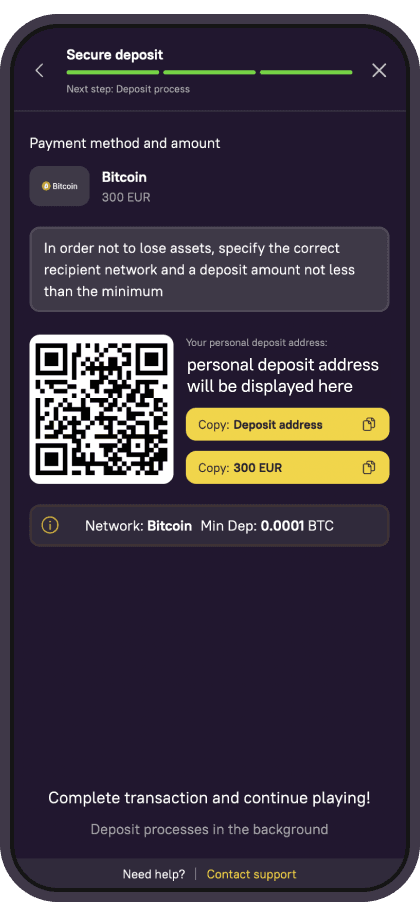
Deposits may take time to verify. If funds don’t show up, contact support and share screenshots. For withdrawals, we use the ERC20 network.
Common Deposit Errors & Fixes
Payment issues can happen with cards or online banking—often because services are blocked in your browser.
Try this:
- Use Chrome
- Go to Settings > Site Settings
- Allow Pop-ups and Redirects
- Disable any ad blockers (like AdBlock)
- Clear cache and cookies
- Check if VPN is affecting the process
Still stuck? Our support team is here to help—just send us a screenshot and we’ll sort it quickly!